.svg)
Drive
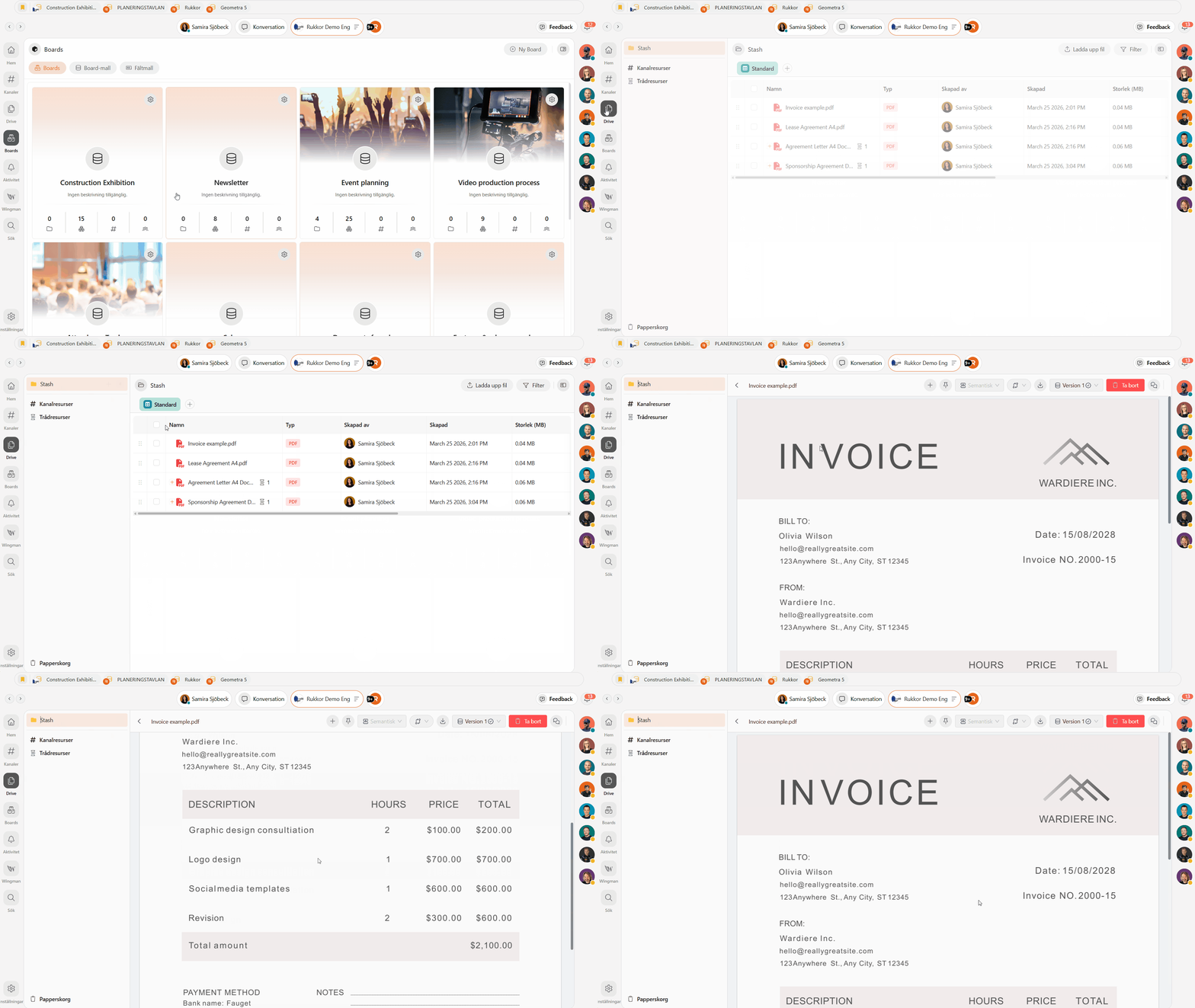
Drive is your team's shared file storage in Rukkor. Upload files, organize them into folders, tag them with custom fields, and compare different versions — all in one place. This article explains how to get started with Drive and use its key features.
Drive is where you store and manage your team's files. Organize, categorize, and work efficiently with documents, images, and other file types — so you always find the right information when you need it.
Uploading files
- Click "Drive" in the left menu.
- Click "Upload file" in the top right corner.
- Select the file from your computer, or drag and drop it directly into Drive.
Once uploaded, add descriptions, tags, and other details to keep your content organized.
Creating folders
- Click on the folder name at the top of the file tree.
- Click + to add new folder.
- Give the folder a name.
Use folders and subfolders to structure your content so it's easy to find later.
Custom fields
Configure which custom fields apply to your documents to classify and label your files. Common fields include:
- Tags
- Document owner
- Sharing details
- Revision intervals
- Dates
- Checkboxes
- Links
- Numeric values
- Person fields
Combine fields to fit exactly how your team works with files.
Views: group, filter, and sort
Decide how your files are displayed. Group, filter, and sort by different criteria, and customize which fields are visible to create a clear, personalized view of your Drive.
Managing file versions
Save different versions of the same document so no information is ever lost. View previous versions at any time and restore them if needed.
Comparing files
Compare files in three ways:
- Semantically — see the differences in content and meaning
- PDF overlay — compare two PDFs visually, layer on layer
- Image overlay — compare two images directly on top of each other
This makes it easy to spot exactly what changed between two versions of a document.
Folder and file options
Click on any folder name to access more options:
- Create folder — add a new subfolder
- Rename — change the folder's name
- Icon and color — personalize how the folder looks
- Download — save the folder's contents to your device
→ Turn files into tasks in Boards
→ See how we protect your data
→ Summarize documents with Wingman
.svg)