.svg)

Boards in Rukkor: build your own planner
Boards in Rukkor: build your own planner
We’ve all been there: an Excel file for the budget, a to-do list in the planning app or on a notepad, endless emails to coordinate the schedule, and the odd document nobody is quite sure who owns. With Boards in Rukkor, you get one structured place where you build lists, workflows, and projects exactly the way you need them. In this article, we go through how a Board is built and how to use it.
What is a Board?
A Board is a planning board that helps you organize and follow up on work, whether it’s daily tasks or bigger projects. What makes it flexible is that you decide the structure yourself. There’s no ready-made setup you have to adapt to. You can still use ready-made Board templates if you want.
Custom fields – you decide what’s needed
A Board is built from custom fields that form the foundation of your planning. Choose fields based on what you need to do. You can then group and filter them however you like. A Board for tasks might have a description, person fields, and dates. A Board for a budget might have numeric values and attachments for receipts. The same Board can handle completely different types of information.
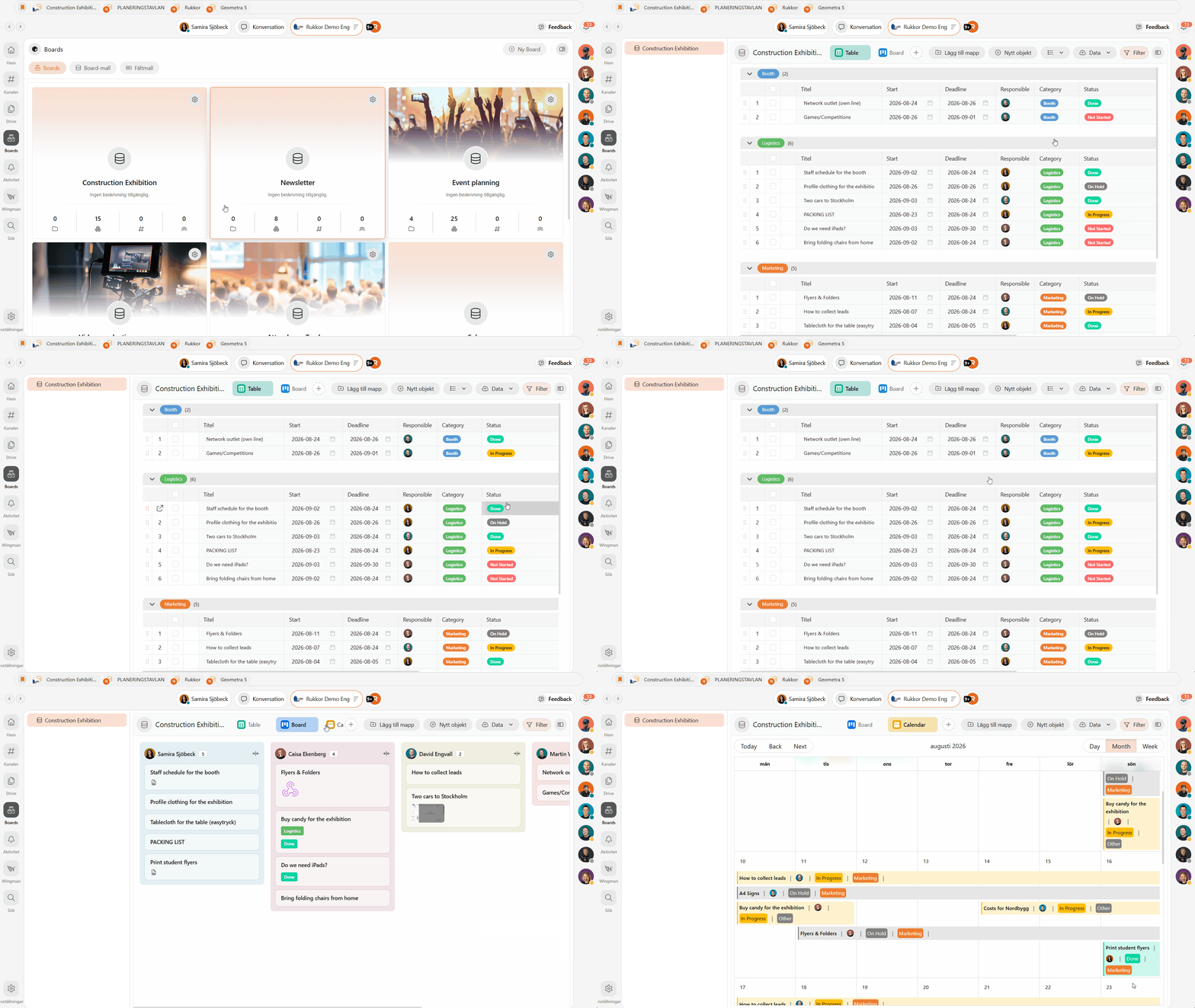
Types of custom fields:
• Checkbox
• Date
• Labels
• Number
• People
• Text
• Attachment
• Link
• Dependency
• Rating
• Formula
• Phone
• Votes
• Flag
Same data, six ways to look at it
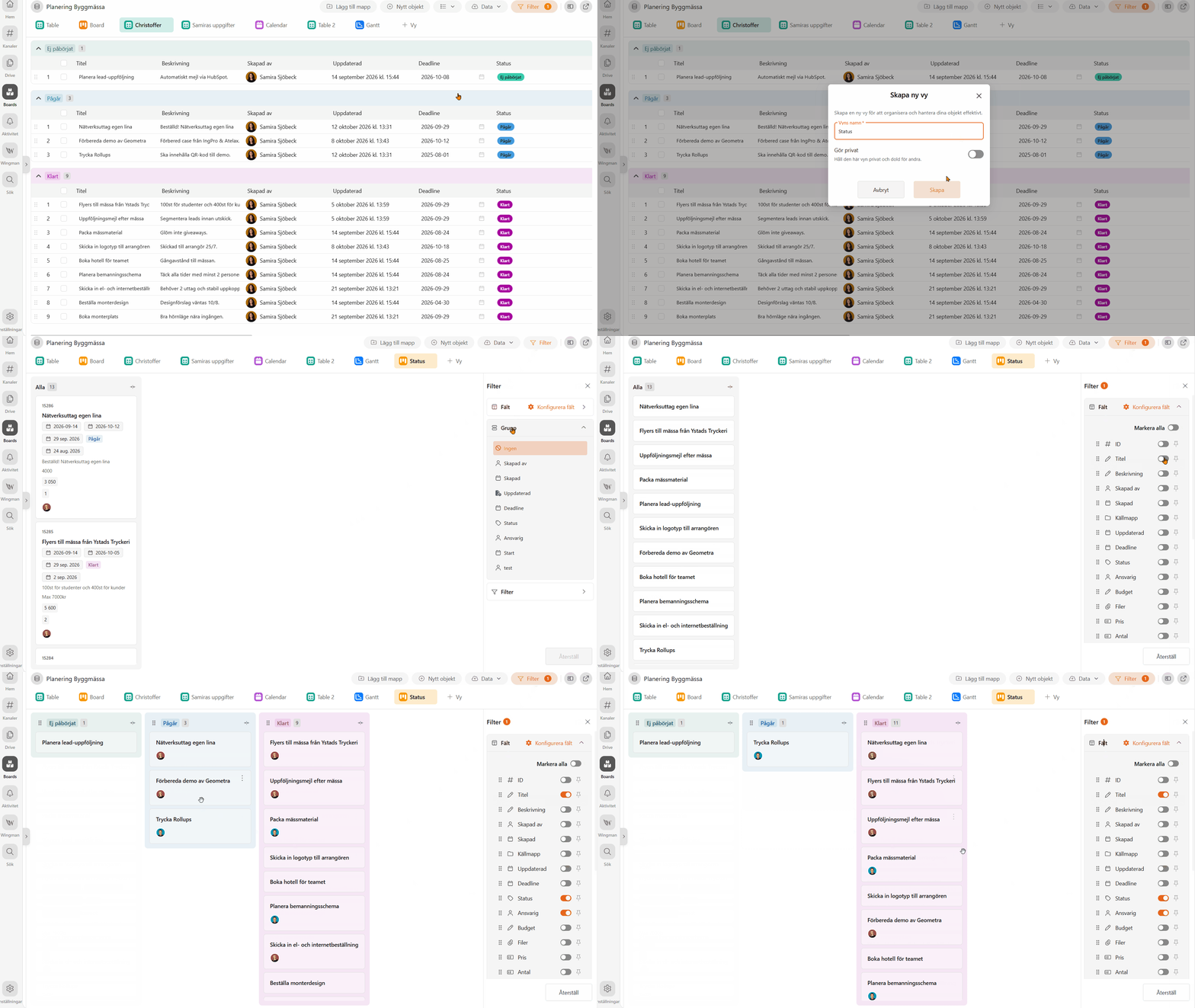
You can switch between different views of the same data in your Board. You enter the information once and then choose how you want to look at it. Here are the views:
• Table: a clear list with rows and columns. Perfect when you want an overview or need to quickly edit many items.
• Columns: a visual workflow where cards move between columns. Great for following status, for example from “To do” to “Done.”
• Calendar: shows when things happen, sorted by date and time.
• Planning: shows how long tasks take and in what order they happen, with bars on a timeline.
• Form: turns your custom fields into a form that others can fill in. More on that below.
• Media: a combined view of the images and files in a Board.
Find what you need: group, filter, and sort
When a Board grows, you need to be able to find things quickly. With the Filter button, you can group, filter, and sort by status, owner, date, or any other custom field.
A concrete example: filter by yourself as owner and sort by deadline, and in two clicks you can see what’s yours and what’s most urgent. It also makes it easy to adapt the same Board for different roles, teams, and workflows.
Save time with Board templates
Have you built a Board you’re happy with? Save it as a template so you don’t have to start over next time.
1. Open the Board.
2. Click the side panel.
3. Choose to save it as a template.
4. Go back to your Boards and open Board templates. There you can share the template and get a code to send to the recipient.
The recipient goes to the “Board template” tab, clicks “Import template,” and enters the code. The same template then lands in their own Space (where they keep their Boards). You can also browse ready-made templates when you create a new Board if you want a quick start.
Create forms in your Board
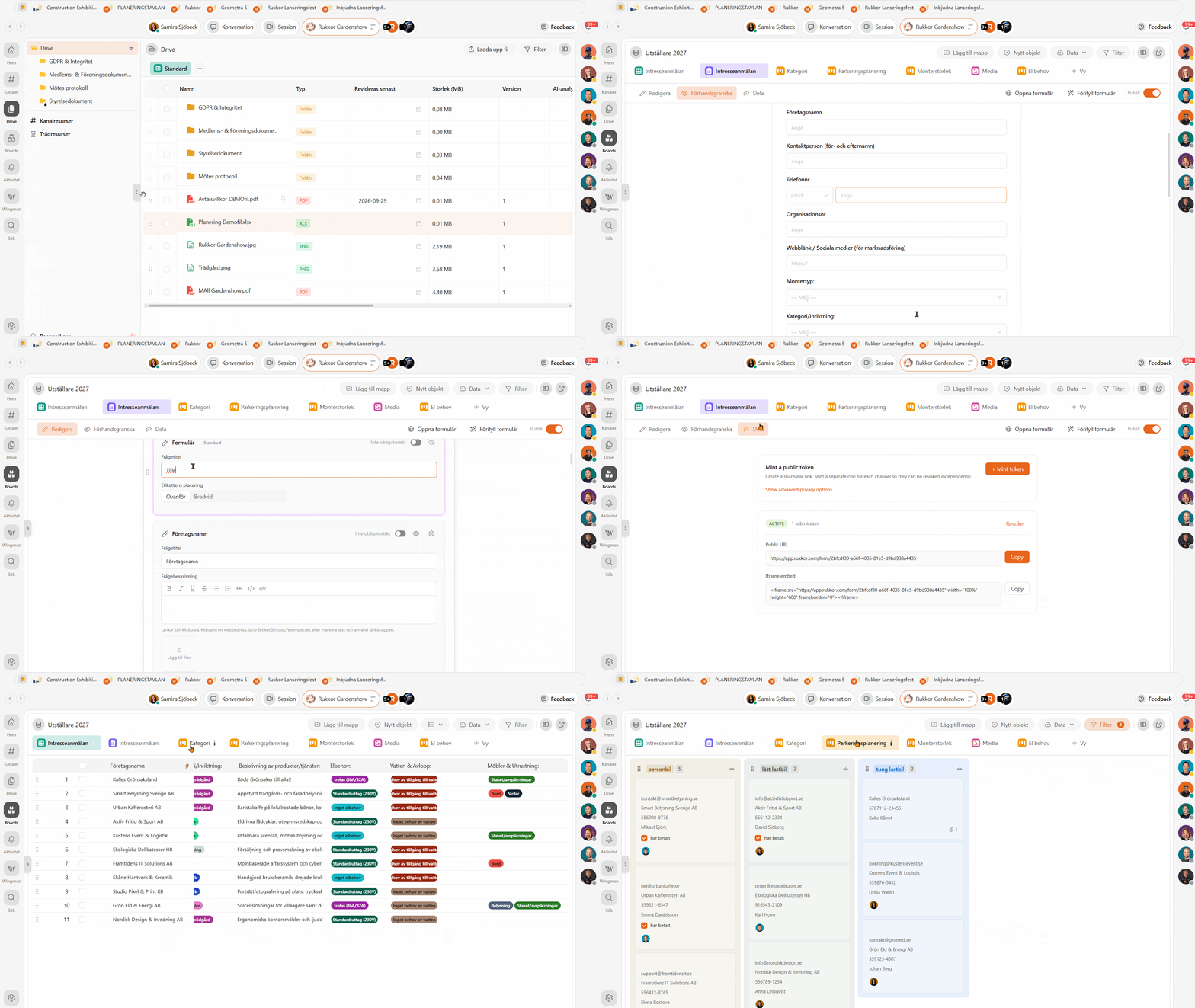
With the Form view, you can collect responses without leaving Rukkor. You use your custom fields to create forms that work both internally and externally. You can send the form as a link or embed it on your website with a code. All the data you receive ends up in the Board where you created the form.
Get started
The best way to understand Boards is to try them. Create a Board, pick a few fields, and switch between the views. You’ll quickly see how the same information can look completely different depending on who’s looking.
Create your Rukkor account and build your first Board: Sign up here

You can receive news, updates, and customer cases directly in your inbox from us. Fill in your email and choose your language.
.svg)