.svg)
Channels
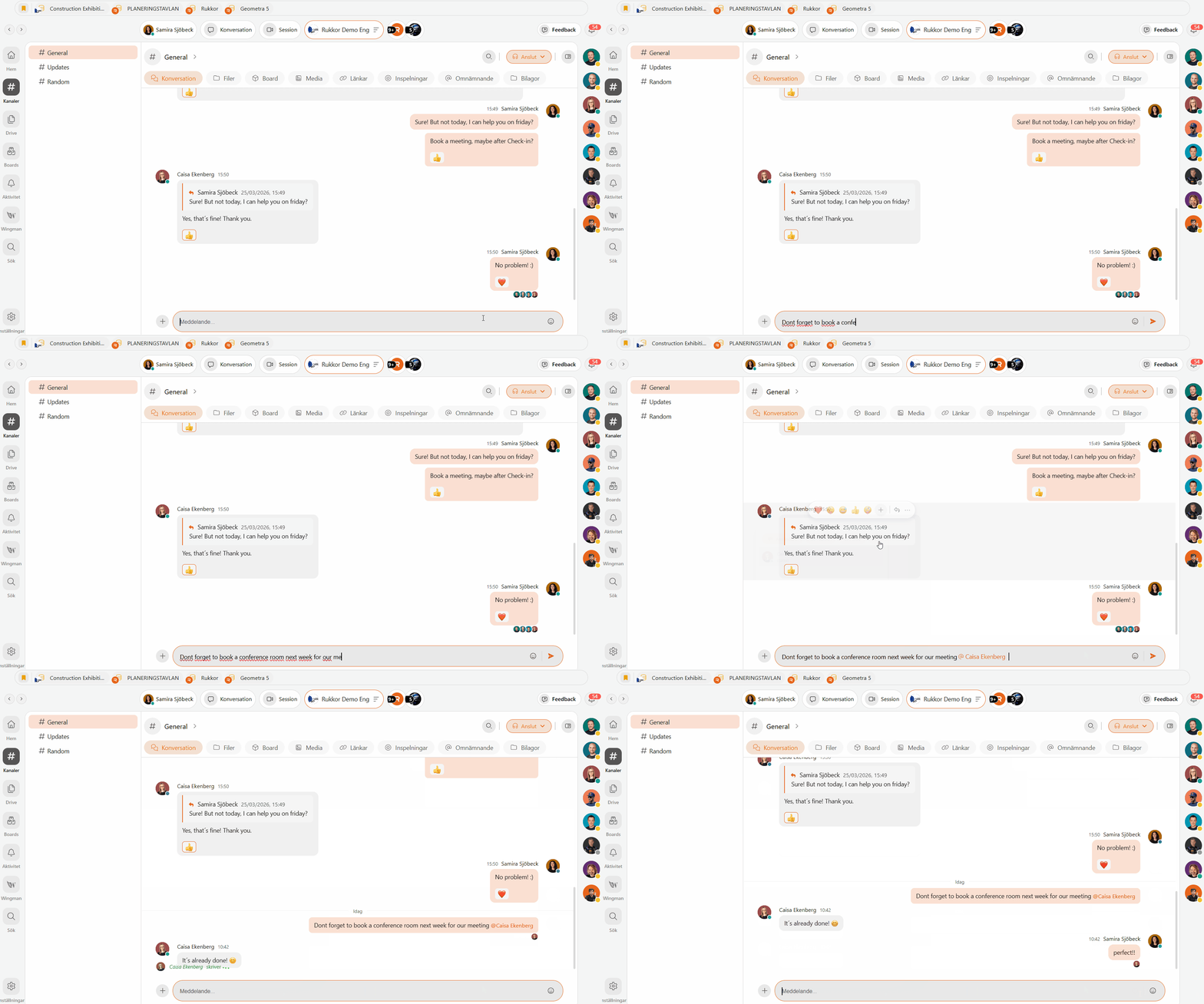
Channels are the backbone of communication in Rukkor. In each Space you can create channels for topics, departments, teams, or projects — and keep everything your team needs in one place. This article explains how categories, channels, and threads work together, and how to set them up.
How it all fits together
Rukkor uses a three-level structure to keep your work organised:
- Category — the top level, used to group related channels (e.g. a department or business area)
- Channel — where conversations, meetings, and tasks happen
- Thread — a focused discussion inside a channel, around a specific topic or task
What is a channel?
A channel is a shared space where your team can:
- Chat and share updates
- Make voice and video calls
- Hold meetings
- Manage tasks and workflow activities
You can create as many channels as you need. There are two types:
Public channel — accessible to all Space members based on their role.
Private channel — only accessible to people who are directly invited, regardless of their role.
How to create a channel:
- Click on your Space.
- Click "New channel."
- Give the channel a name and choose public or private.
💡 Tip: Name your channels clearly so everyone instantly knows what belongs there — for example, #marketing, #project-alpha, or #general.
What is a category?
A category groups related channels together. Use categories to represent departments, business areas, teams, or project types. Each category can have its own custom fields — for example a project manager field, completion dates, or other details relevant to that area of work.
How to create a category:
- Click on your Space.
- Click "New category."
- Give it a name and configure any custom fields.
What is a thread?
A thread is a focused conversation inside a channel. Instead of all messages piling up in the same chat, threads keep discussions organized around a specific task, question, or topic.
How to create a thread:
Right-click the channel and select "Create thread."
💡 Tip: Use threads for specific topics or decisions so they're easy to find later — instead of searching through a long chat history.
Managing your channels
Once a channel is created you can:
- Rename it by right-clicking the channel name
- Switch between public and private in the channel settings
- Adjust notifications per channel — mute channels that don't need your constant attention
Tips for a good structure
A clear hierarchy saves your team time every day. Here's an example of how you might structure a small company:
- 📁 Company (category)
- #general
- #announcements
- 📁 Projects (category)
- #project-alpha
- #project-beta
- 📁 Teams (category)
- #design
- #development
Start simple — you can always add more channels as your team grows.
→ Organise your project in Boards
→ Share documents and images in Drive
→ Send direct messages
→ What is a Space?
.svg)